


Please Consider Donating us
We are helping millions of Beginners and Professionals to learn new programming technologies.
Please consider donating us:



ASP.NET Web Forms – Sorting GridView with jQuery Load method with no page postback

Did you know that jQuery can be used to sort an ASP.NET GridView asynchronously, allowing users to sort data without triggering a page postback? By handling the sorting operation on the client side with jQuery, you can make your GridView faster, cleaner, and more responsive.
Using jQuery for GridView sorting offers several advantages:
- Simple implementation – You can implement GridView sorting with just a few lines of code.
- No code duplication – The same jQuery sorting functionality can be reused across multiple pages that contain a GridView.
- No server-side sorting event required – You don’t need to write a GridView sorting event in the .cs file because jQuery handles the sorting on the client side.
- No UpdatePanel required – The sorting happens asynchronously without relying on an ASP.NET UpdatePanel.
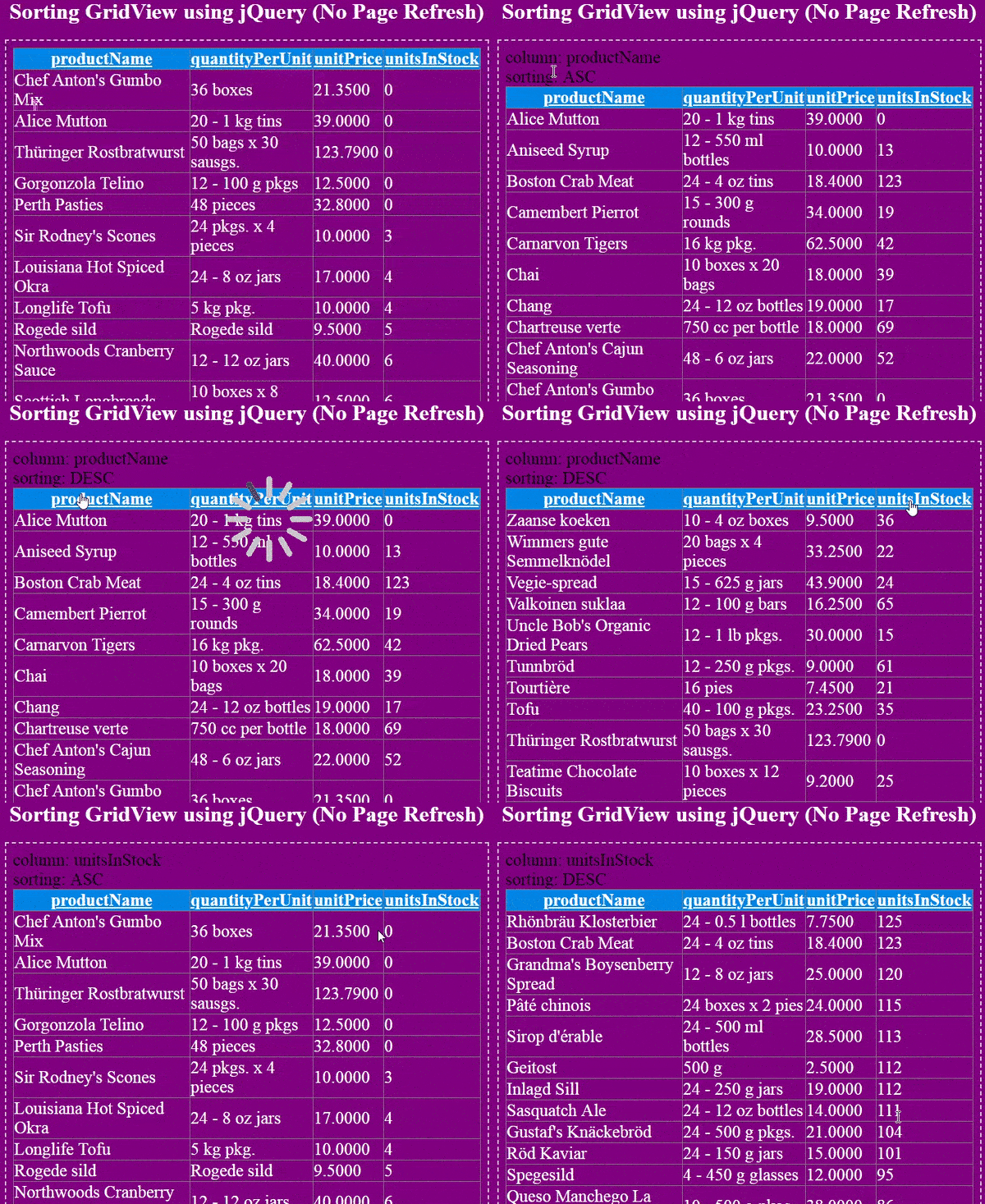
The below video shows the Sorting of the GridView taking place. Note that there is no page postback and a loading image showing up during asynchronous operations:
Project Details
In your ASP.NET Web Forms Project, create 2 new pages result.aspx and index.html.
In result.aspx add a GridView:
<asp:GridView ID="gridView" runat="server"></asp:GridView>Next, go to the result.aspx.cs page and bind the GridView from data, which is fetched from a database table:
protected void Page_Load(object sender, EventArgs e)
{
    if (!IsPostBack)
    {
        BindGridView();
    }
}

void BindGridView()
{
    string colName = Request.Form["col"];
    string sortOrder = Request.Form["order"];

    string query = "";

    if (sortOrder == null)
        query = "SELECT PRODUCTNAME,QUANTITYPERUNIT,UNITPRICE,UNITSINSTOCK FROM PRODUCTS";
    else if (sortOrder == "DESC")
        query = "SELECT PRODUCTNAME,QUANTITYPERUNIT,UNITPRICE,UNITSINSTOCK FROM PRODUCTS ORDER BY " + colName + " " + sortOrder;

    SqlConnection conn = new SqlConnection();
    SqlCommand cmd = new SqlCommand();
    DataTable dataTable = new DataTable();
    conn.ConnectionString = ConfigurationManager.ConnectionStrings["CS"].ConnectionString;
    cmd.Connection = conn;

    cmd.CommandType = CommandType.Text;
    cmd.CommandText = query;
    cmd.Connection = conn;

    SqlDataAdapter sqlDataAdapter = new SqlDataAdapter();
    sqlDataAdapter.SelectCommand = cmd;
    try
    {
        sqlDataAdapter.Fill(dataTable);
        gridView.DataSource = dataTable;
        gridView.DataBind();
    }
    catch (Exception ex)
    {
        Response.Write(ex.Message);
    }
    finally
    {
    }
}
Explanation: On page load event, we are binding the GridView, by calling the BindGridView() C# function. In this function, we fetch the 2 values from Request.Form method like:
string colName = Request.Form["col"];
string sortOrder = Request.Form["order"];
These 2 values ‘col’ & ‘order’ will be sent from jQuery code in the ‘index.html’ page. Based on these 2 values we will be doing the sorting of GridView.
See the below if condition:
if (sortOrder == null)
    query = "SELECT PRODUCTNAME,QUANTITYPERUNIT,UNITPRICE,UNITSINSTOCK FROM PRODUCTS";
else if (sortOrder == "DESC")
    query = "SELECT PRODUCTNAME,QUANTITYPERUNIT,UNITPRICE,UNITSINSTOCK FROM PRODUCTS ORDER BY " + colName + " " + sortOrder;
We check if the sortOrder is not passed from index.html (i.e. it is null). Then we get all the Products from the Products table and their is no ‘order by’ clause applied.
Lastly, if the sortOrder is passed (so that it is not null), then we apply the “order by” clause to the SQL query like:
query = "SELECT PRODUCTNAME,QUANTITYPERUNIT,UNITPRICE,UNITSINSTOCK FROM PRODUCTS ORDER BY " + colName + " " + sortOrder;In Index.html page, add the following HTML code:
<div class="imageDiv">
    <img src="loading.gif" />
</div>
<div id="sortDetail"></div>
<div id="gridViewDiv"></div>
<input type="hidden" id="clickedColumn" />
<input type="hidden" id="sortOrder" />
The imageDiv contains a loading image that will be used to tell users that the AJAX request is currently working.
The sortDetail div will shown the current sorting order applied on a column of the GridView.
The gridViewDiv will show the GridView data fetched from result.aspx page using AJAX.
Two hidden input controls that will hold the value of the:
- Column name where sorting is to be applied.
- Sort order (ascending or descending) to be applied on the ‘order by’ clause.
See the below 2 lines of codes:
<input type="hidden" id="clickedColumn" />
<input type="hidden" id="sortOrder" />
Now, apply the following jQuery code to your index.html page:
<script src="https://ajax.googleapis.com/ajax/libs/jquery/3.1.0/jquery.min.js"></script>

<script>
    $(document).ready(function () {
        $("#gridViewDiv").load("result.aspx #gridView", function (response, status, xhr) {
            if (status == "error")
                $("#gridViewDiv").html("Error: " + xhr.status + ": " + xhr.statusText);
        });

        $("#gridViewDiv").on("click", "th", function () {
            GetOrder($(this).text());

            $("#gridViewDiv").load("result.aspx #gridView", { "col": $("#clickedColumn").val(), "order": $("#sortOrder").val() }, function (response, status, xhr) {
                if (status == "error")
                    $("#gridViewDiv").html("Error: " + xhr.status + ": " + xhr.statusText);
            });

            $("#sortDetail").html("column: " + $("#clickedColumn").val() + "<br/>" + "sorting: " + $("#sortOrder").val());
        });

        function GetOrder(column) {
            if (($("#clickedColumn").val() == "") || ($("#clickedColumn").val() != column)) {
                $("#sortOrder").val("ASC");
            }
            else if ($("#clickedColumn").val() == column) {
                if ($("#sortOrder").val() == "ASC")
                    $("#sortOrder").val("DESC");
                else if ($("#sortOrder").val() == "DESC")
                    $("#sortOrder").val("ASC");
            }
            $("#clickedColumn").val(column);
        }

        $(document).ajaxStart(function () {
            $("img").show();
        });

        $(document).ajaxStop(function () {
            $("img").hide();
        });
    });
</script>
Explanation: We have used jQuery Load method to get the GridView from result.aspx page like this:
$("#gridViewDiv").load("result.aspx #gridView", function (response, status, xhr) {
    if (status == "error")
        $("#gridViewDiv").html("Error: " + xhr.status + ": " + xhr.statusText);
});
Here we haven’t sent any values from the load method. So the GridView will bind records from ‘Products’ table without applying ‘Order By’ clause.
When any of the GridView’s header column is clicked then the below click event will fire, and it will send the ‘col’ and ‘order’ to the result.aspx page.
$("#gridViewDiv").on("click", "th", function () {
    GetOrder($(this).text());

    $("#gridViewDiv").load("result.aspx #gridView", { "col": $("#clickedColumn").val(), "order": $("#sortOrder").val() }, function (response, status, xhr) {
        if (status == "error")
            $("#gridViewDiv").html("Error: " + xhr.status + ": " + xhr.statusText);
    });

    $("#sortDetail").html("column: " + $("#clickedColumn").val() + "<br/>" + "sorting: " + $("#sortOrder").val());
});
GridView will bind records from Products table by applying ‘Order By’ clause, and this way sorting will be done.
The GetOrder() method stores the ‘clicked header column name’ and ‘sort order’ to be applied, in the 2 hidden input controls:
function GetOrder(column) {
    if (($("#clickedColumn").val() == "") || ($("#clickedColumn").val() != column)) {
        $("#sortOrder").val("ASC");
    }
    else if ($("#clickedColumn").val() == column) {
        if ($("#sortOrder").val() == "ASC")
            $("#sortOrder").val("DESC");
        else if ($("#sortOrder").val() == "DESC")
            $("#sortOrder").val("ASC");
    }
    $("#clickedColumn").val(column);
}
<p>The below 2 method shows and hides the load image to tell user when the AJAX request is going on:</p>
$(document).ajaxStart(function () {
    $("img").show();
});

$(document).ajaxStop(function () {
    $("img").hide();
});
Testing
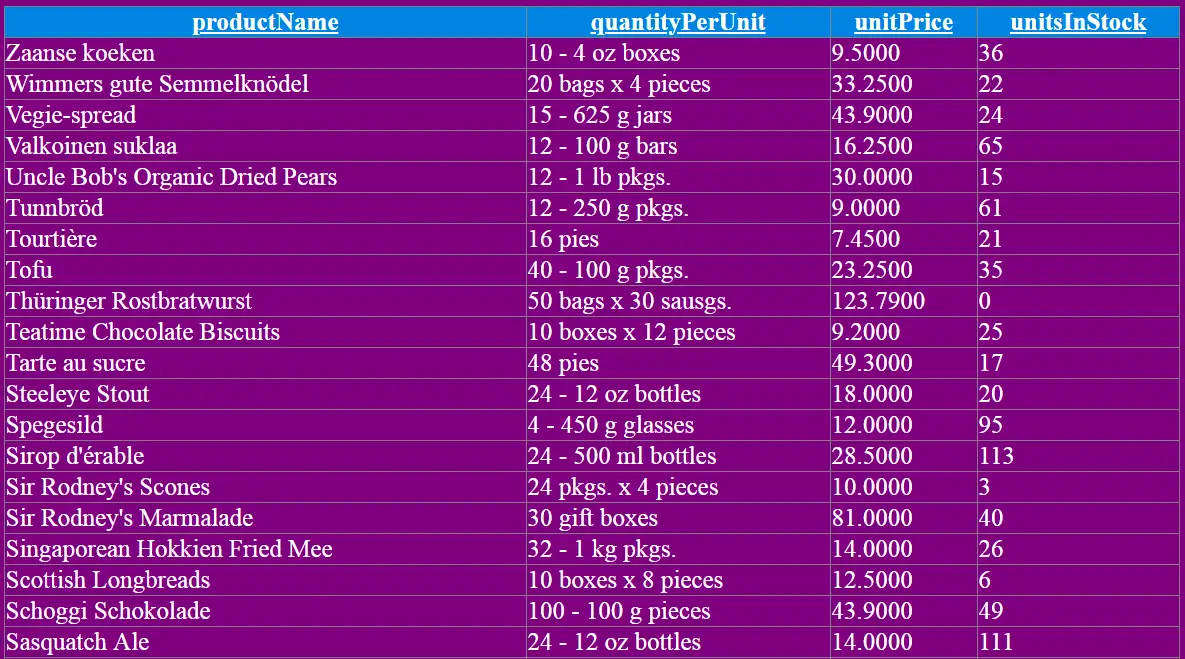
Run the index.html page in the browser and you will see the GridView loaded from result.aspx page as shown below:
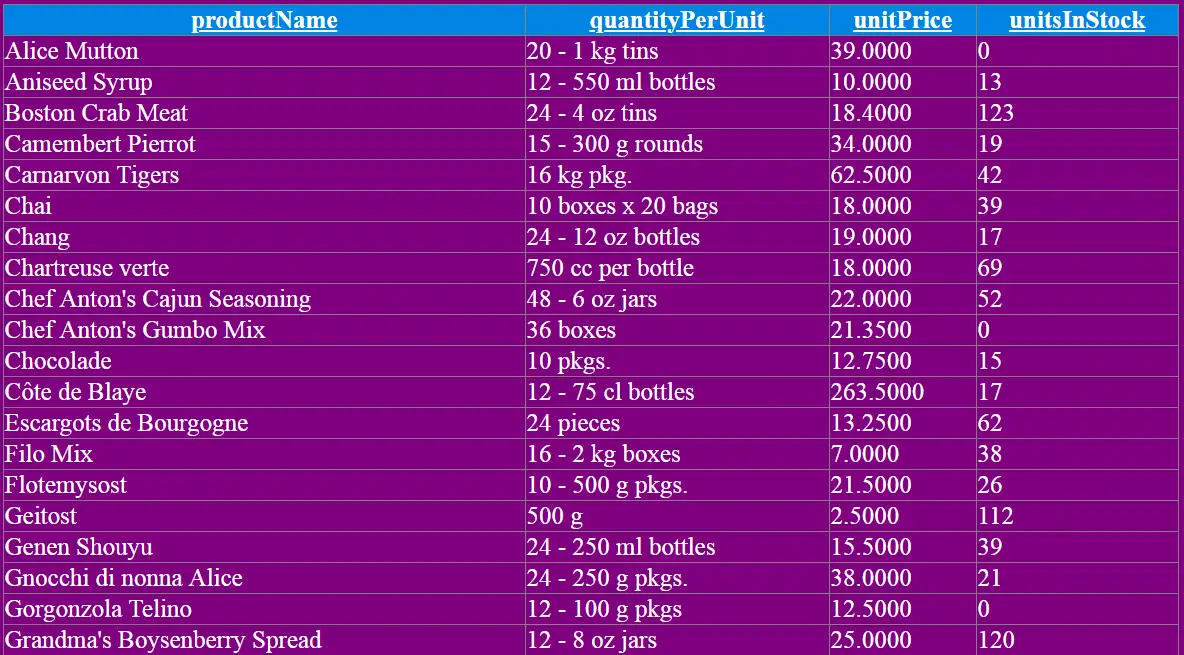
Now click the ‘productName’ column and you will see the GridView now sorts in ASCENDING manner.
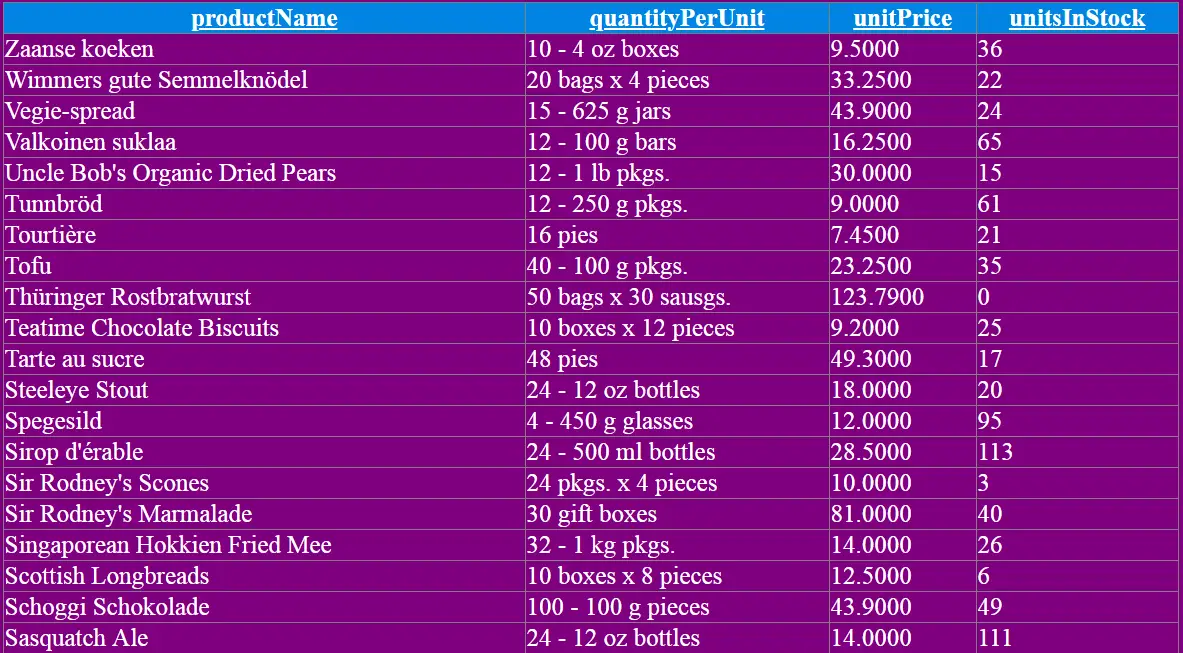
Click the ‘productName’ column once more and you will see the GridView now sorts in DESCENDING manner.
Download the codes:
In this tutorial, we learned how to sort an ASP.NET Web Forms GridView asynchronously using jQuery and the jQuery Load method. The sorting is performed without refreshing or posting back the entire page, resulting in a smoother and more responsive user experience.
We used jQuery to detect clicks on the GridView column headers, determine the column name and sort order, and then asynchronously reload only the GridView from the result.aspx page. The same approach also allows the sorting order to be switched between ascending (ASC) and descending (DESC) with each click.
The biggest advantage of this approach is its simplicity. You don’t need to implement the GridView’s server-side sorting event or use an UpdatePanel. Instead, jQuery handles the AJAX request and updates only the required portion of the page, while a loading indicator provides visual feedback during the asynchronous operation.
I hope this tutorial helped you understand how jQuery can make ASP.NET GridView sorting faster and more user-friendly. You can use the same technique in other Web Forms applications whenever you need to update a portion of a page without performing a full page postback.
SHARE THIS ARTICLE


Related Tutorials:



ABOUT THE AUTHOR
I hope you enjoyed reading this tutorial. If it helped you then consider buying a cup of coffee for me. This will help me in writing more such good tutorials for the readers. Thank you.

HELLO EVERYONE
 Welcome to YogiHosting - A Programming Tutorial Website. It is used by millions of people around the world to learn and explore about ASP.NET Core, Blazor, jQuery, JavaScript, Docker, Kubernetes and other topics.
SUBSCRIBE TO NEWSLETTER
Enter your email address to subscribe to this blog and receive notifications of new posts by email.
Join 90K other subscribers